Microsoft Planner Has a Silent Data-Loss Problem. So I Fixed It.
If you’ve ever deleted a Planner plan or task by mistake, this article is for you.

Let me say something that might sound strange.
I love Microsoft Planner.
And that’s coming from someone whose day job and genuine passion is building solutions and supporting businesses with Power Apps, Power Automate, and Copilot Studio. Tools that are powerful, flexible, and enterprise-grade. All the buzzwords.
But here’s the thing. Planner, straight out of the box, just works.
It gives me a place to dump tasks without friction. I can share plans with a team in seconds, comment, attach files, collaborate, and move fast. There’s no ceremony and no overthinking. No “let’s spend two weeks designing the system before doing the work.”
For task management, that matters.
So when I decided to finally start writing on Substack, it felt right that my first article would be about Microsoft Planner. Not Power Apps. Not Power Automate. Planner.
But you already know this. Planner isn’t perfect.
Even with the updates we’ve seen over the last few years, including premium features, UI tweaks, and a bit of polish, there’s still a massive, glaring problem.
You can delete a task. You can delete an entire plan. And once it’s gone, it’s gone.
There’s no recycle bin. No safety net. No “are you really sure?” moment that saves you from yourself. That’s not okay.
At a minimum, Planner needs the ability to back up plans and tasks automatically, every single night. So instead of waiting for that feature to magically appear, I built it.
This article is what I’m going to call…Part One. Part One is about backing up Planner plans and tasks every night into an Excel file, stored safely in SharePoint.
Could this data live somewhere else? Absolutely. Dataverse might make sense. A Microsoft List could work. But if we’re being honest, Excel wins here. It’s simple, accessible, and gives you a clear, timestamped backup for every single day. We also clean up after ourselves. Anything older than 30 days gets deleted automatically. No clutter. No runaway storage.
Part Two will cover restoring that data back into Microsoft Planner if you ever need to. That’s coming soon so be sure to subscribe to keep up to date.
Now let’s talk about how this will work, at a high level.
The High-Level Flow
Everything we need to do lives inside Power Automate. One cloud flow. No drama.
The entire purpose of this flow is simple: take everything that makes a Planner plan valuable, and capture it in a format that’s easy to store, open, and understand later.
That means we’re not just backing up task titles and due dates. We’re backing up the context around the work. The stuff that usually gets lost when something is deleted by accident.
Each nightly backup file includes:
Task ID
The unique identifier for the task, which becomes critical later if you ever want to restore or reconcile data.Task name
The obvious one, but still essential.Bucket
So you know where the task lived in the plan.Progress and priority
Because “Not started” and “Almost done” are very different states to recover from.Assigned to
Stored as readable display names, not just IDs, so the file actually makes sense.Created date, start date, and due date
This gives you the full timeline of the task, not just where it ended up.Late flag
A simple indicator to show whether the task was overdue at the time of backup.Completed date
When the work was actually finished.Description
Often the most important part of a task, the details.Checklist items and completion state
Both the individual checklist entries and number completed.Labels
Captured so you can see exactly how the task was categorised.Comments
Pulled from the underlying Microsoft 365 Group threads and attached back to the correct task, preserving the conversation and decisions that happened along the way.
The end result is a clean, structured Excel file that actually tells the full story of your plan on that day. Not just what the tasks were, but how they were being used.
And because this runs on a schedule, you get that snapshot every single night without having to think about it.
Schedule the Backup
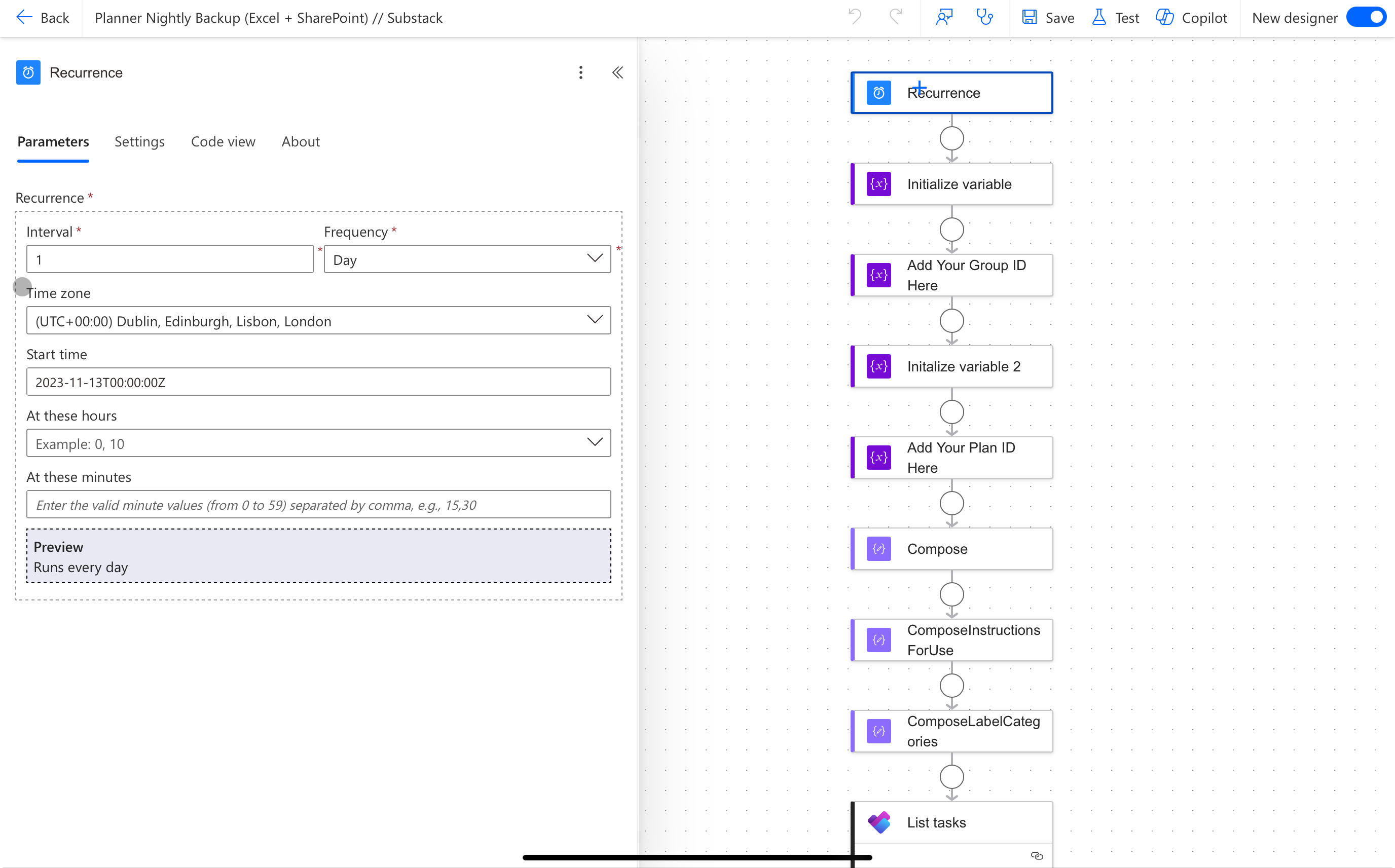
We start with a Recurrence trigger. This is what makes the backup automatic.
You can run it every night, every morning, or even every hour if you want. Once it’s scheduled, backups just happen. That’s the goal.
Tell the Flow What to Back Up
Planner is built on Microsoft 365 Groups, which means every plan has both a Group ID and will also have a Plan ID. You’ll find both directly in the relevant Planner URL and these are of course unique to you.
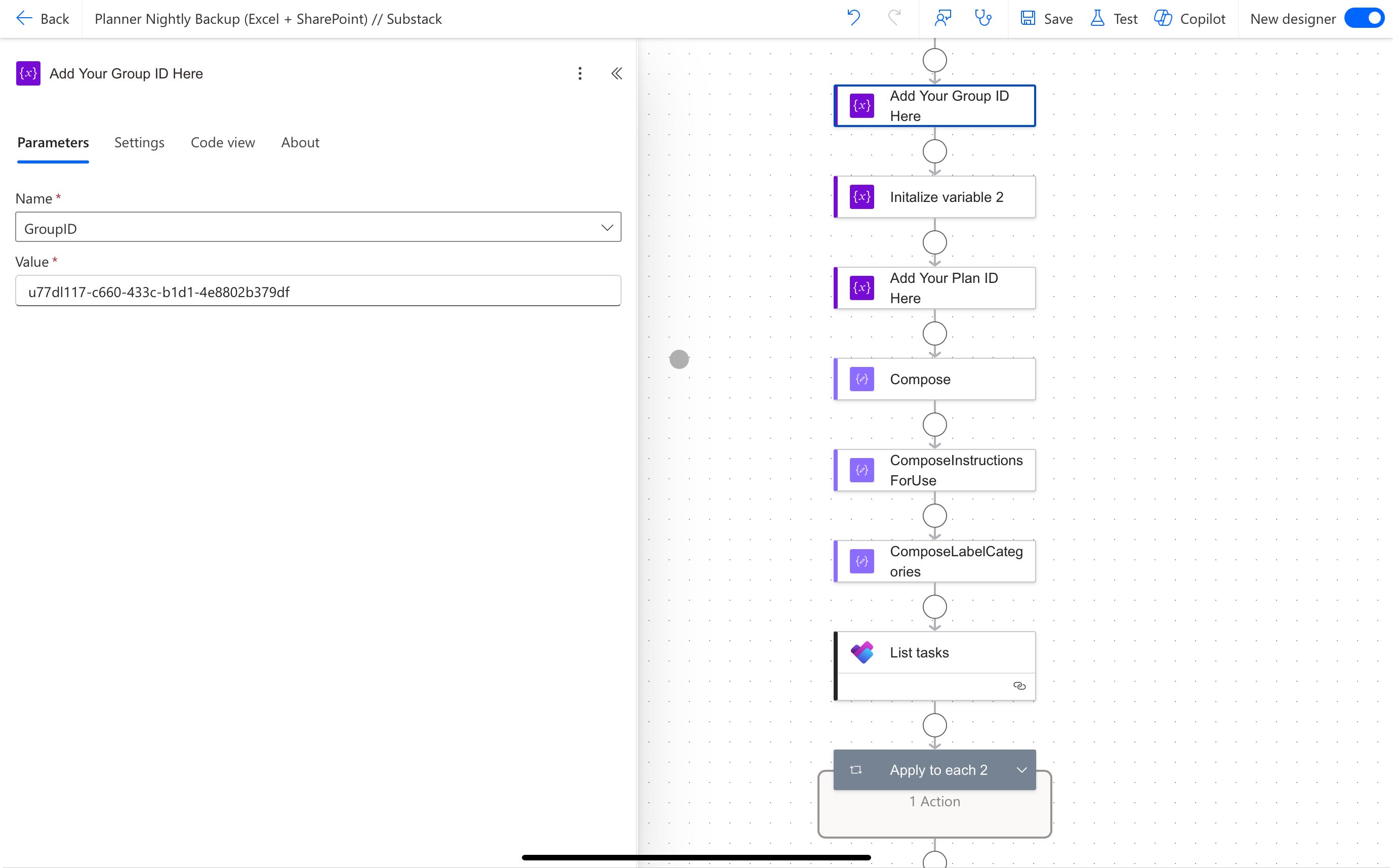
We will store these values in Compose actions rather than hardcoding them throughout the flow. That way, changing plans later is quick and painless, and of course if you want to back up multiple plans, duplicate the flow and update the IDs. Simple beats clever every time.
Understanding that Planner is built on Microsoft 365 Groups matters a lot. It unlocks access to comments but also a lot of interesting Planner automation possibilities that I’ll cover in future articles (did someone say @mentions in comments?).
Pull the Planner Data
Next, we gather everything we care about: tasks, buckets, plan details, and group threads.
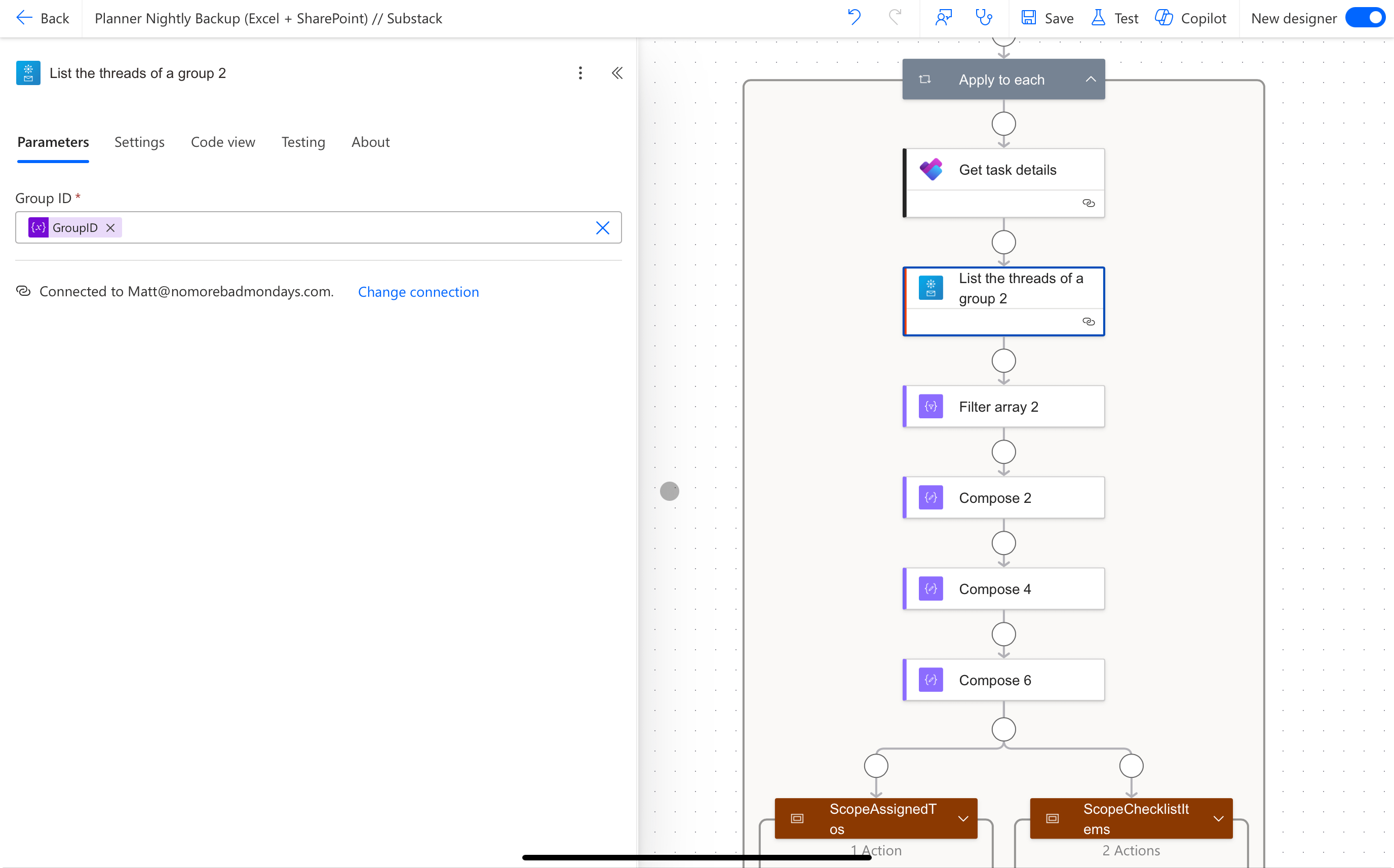
Those threads are important because that’s where Planner comments live. No threads means no comments, and no comments means an incomplete backup.
All of these actions are standard Power Automate steps, wired up using the IDs captured earlier.
Shape the Data
This is the busiest part of the flow. Behind the scenes, the automation matches tasks to buckets, resolves assigned users, pulls labels, checklists, and completion state, and attaches comments to the correct task.
It looks complex because Planner data is complex. Tasks are no longer just titles and due dates. They carry assignments, metadata, and conversation.
The good news is you don’t need to rebuild this logic yourself. The full solution is downloadable at the end of the article, clearly named and ready to use.
Conceptually, we’re turning Planner’s nested data into something flat and Excel-friendly.
Create the Excel Backup
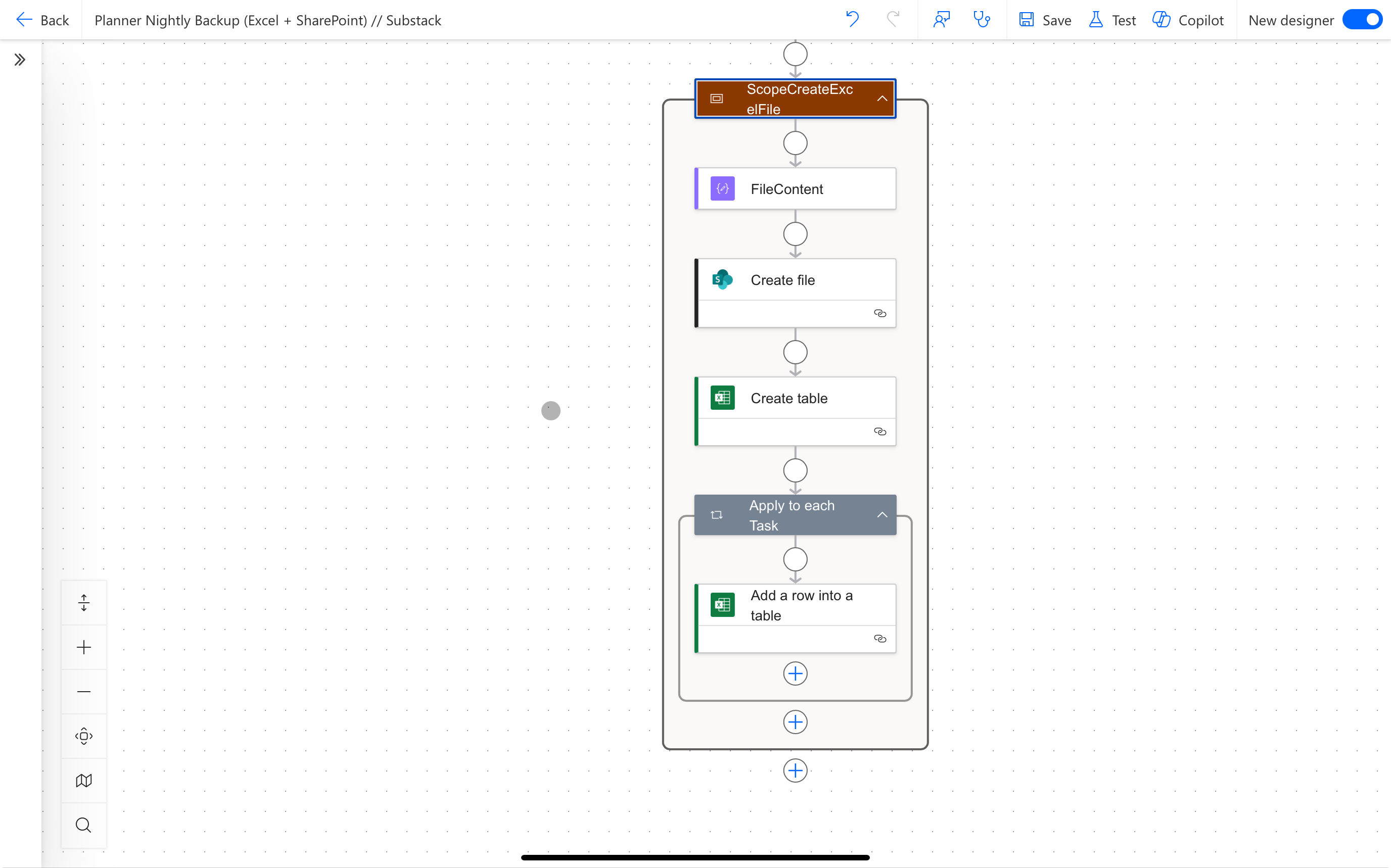
Finally, we create a new Excel file in SharePoint, add a table, and write one row per task.
Each run creates a fresh, timestamped file that’s easy to open and easy to understand. If something disappears tomorrow, you still have yesterday.
Old backups clean themselves up after 30 days. Clean in, clean out.
And That’s It
You now have something Microsoft Planner still doesn’t give you: a nightly backup that’s hands-off, reliable, and safe.
You’re no longer one accidental delete away from a bad day.
In Part Two, we’ll look at restoring this data back into Microsoft Planner if the worst ever happens.
For now, download the solution, update your connections, plug in your IDs, throw in your Sharepoint url and let it run tonight. Future-you will be glad you did.
The ideas and solutions shared in this article are intended to promote practical ways of thinking and problem-solving. Any examples, workflows, or solutions are provided as starting points, not finished products.
You may need to adapt, extend, or modify them to suit your own tenant, environment, security requirements, or organisational policies. Always test in a safe environment before using in production.
If you’d like help adapting or extending these ideas for your own environment, feel free to get in touch to discuss potential support opportunities.